A Complete Guide for HTML!

Here's what we'll go over in this article :
- What is HTML?
- HTML Page Structure
- HTML Tags
- HTML Elements
- HTML Attributes
- Conclusion
What is HTML?
First, what is HTML? HTML stands for HyperText Markup Language.
HTML is used to design web pages using a markup language. HTML is the combination of Hypertext and Markup language. Hypertext defines the link between the web pages. A markup language is used to define the text document within tag which defines the structure of web pages.
HTML describes how a document should be displayed by an internet browser. It was created by physicist Tim Berners-Lee in the late 1990s and, like all programming languages, has been continuously revised and updated over the years.
Hypertext
"Hypertext" refers to links that connect web pages to one another, either within a single website or between websites. You can click on these links to jump to other pages or sections of text.
Markup
This part refers to HTML tags and the text inside them.
Language
A language that a computer system understands and uses to interpret commands.
HTML Page Structure
Before you can build out an HTML page, we will see structure of HTML page. Typically, a page will be made up of three structural elements:
Header : The header contains content relevant to all pages on your site, such as a logo or website name, and a navigation system. The header is seen on each page.
Main body : This occupies the largest area on a web page. It contains content specific to the page being viewed.
Footer : Footer content usually includes contact information, a shipping address, or legal notices. Like the header, the footer appears on every page, but it’s positioned at the bottom.
Basic structural elements look like when they come together:
<html>
<head>
        The head part of your page
</head>
<body>
       The main body of your page
</body>
</html>
HTML Tags
The starting point for any HTML code is individual tags, which can be used to create all crucial elements and help to structure your web pages. HTML tags are written inside angle brackets, and tend to come in pairs—so, they consist of both an opening and a closing tag.
Heading Tags
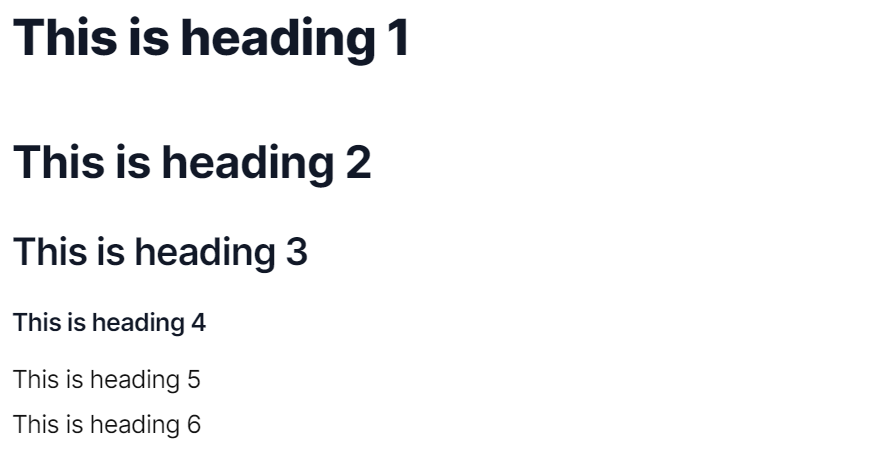
All online documents, including web pages, begin with a heading. These are constructed using HTML tags, with the language currently allowing for up to six variably sized elements that also enable you to structure your content with additional titles, subtitles and highlighted lines of bold text. To start your heading, you simply prefix the relevant text with the <h1> , <h2> , <h3> , <h4> , <h5> or <h6> tag depending on the desired size.
Then apply a closing tag at the end of the heading to encapsulate the text, and will be displayed as follows in HTML format:
     <h1> This is heading 1 </h1>
     <h2> This is heading 2 </h2>
     <h3> This is heading 3 </h3>
     <h4> This is heading 4 </h4>
     <h5> This is heading 5 </h5>
     <h6> This is heading 6 </h6>
This will translate into the following format on your website’s landing page:
Paragraph Tags
The HTML <p> element defines a paragraph. A paragraph always starts on a new line, and browsers automatically add some white space before and after a paragraph. This allows you to structure your content and divide it into relevant paragraphs, which in turn translates into an easier and more seamless reading experience. The <p>tag should be placed at the beginning of the relevant text, before the alternate closing tag is applied at the end to complete the effect. Unlike heading tags, however, there are no numerical various that can alter the size of the text featured in the paragraph.
Example
<p>Your First Paragraph</p>

<p>Your Second Paragraph</p>

<p>Your Third Paragraph</p>
Horizontal Lines
The <hr> tag defines a thematic break in an HTML page, and is most often displayed as a horizontal rule. The <hr> element is used to separate content in an HTML page. The <hr> tag is an empty tag, which means that it has no end tag.
Example
<h1>This is heading 1</h1>
<p>This is Paragraph 1</p>
<hr>
<h2>This is heading 2</h2>
<p>This is Paragraph 2</p>
<hr>
Line Break Tag
The HTML <br> element defines a line break. Use <br> if you want a line break without starting a new paragraph. The <br> tag is an empty tag, which means that it has no end tag.
Example
<p>This is <br> a paragraph <br> with line breaks.</p>
Other Tags
<!-- -- >: Describe a comment text in the source code<!doctype>: Defines a document type<a>: Specific a anchor . Use for link in internal/external web documents.<abbr>: Describes an abbreviation<acronym>: Describes an acronyms<address>: Describes an address information<applet>: Embedding an applet in HTML document<area>: Defines an area in an image map<article>: Defines an article<aside>: Describes contain set on aside place in page contain<audio>: Specific audio content<b>: Specific text weight bold<base>: Define a base URL for all the links with in a web page<basefont>: Describes a default font color, size, face in a document<bb>: Define browser command, that command invoke as per client action<bdo>: Specific direction of text display<big>: Defines a big text<blockquote>: Specifies a long quotation<body>: Defines a main body part in HTML document<button>: Specifies a press/push button<canvas>: Specifies the display graphics on HTML web documment<caption>: Define a table caption<center>: Specifies a text is display in center align.<cite>: Specifies a text citation<code>: Specifies computer code text<col>: Specifies a each column within a<colgroup>element in table<colgroup>: Defines a group of one or more columns inside table<command>: Define a command button, invoke as per user action.<datagrid>: Define a represent data in datagrid either list wise or tree wise<datalist>: Define a list of pre-defined options surrounding<input>tag<dd>: Defines a definition description in a definition list<del>: Specific text deleted in web document<details>: Define a additional details hide or show as per user action<dfn>: Define a definition team<dialog>: Define a chat conversation between one or more person.<dir>: Define a directory list.<div>: Define a division part<dl>: Define a definition list<dt>: Define a definition team<em>: Define a text is emphasize format<embed>: Define a embedding external application using a relative plug-in<eventsource>: Defines a source of event generates to remote server<fieldset>: Defines a grouping of related form elements<figcaption>: Represents a caption text corresponding with a figure element<figure>: Represents self-contained content corresponding with a element<font>: Defines a font size, font face and font color for its text<footer>: Defines a footer section containing details about the author, copyright, contact us, sitemap, or links to related documents.<form>: Defines a form section that having interactive input controls to submit form information to a server.<frame>: Defines frame window.<frameset>: Used to holds one or more<frame>elements.<head>: Defines header section of HTML document.<header>: Defines as a container that hold introductory content or navigation links.<hgroup>: Defines the heading of a section that hold the h1 to h6 tags.<html>: Define a document is a HTML markup language<i>: Defines a italic format text<iframe>: Defines a inline frame that embedded external content into current web document.<img>: Used to insert image into a web document.<input>: Define a get information in selected input<ins>: Used to indicate text that is inserted into a page and indicates changes to a document.<isindex>: Used to create a single line search prompt for querying the contents of the document.<kbd>: Used to identify text that are represents keyboard input.<keygen>: Used to generate signed certificate, which is used to authenticate to services.<label>: Used to caption a text label with a form<input>element.<legend>: Used to add a caption to a group of related form elements that are grouped together into the<fieldset>tag.<li>: Define a list item either ordered list or unordered list.<link>: Used to load an external stylesheets into HTML document.<map>: Defines an clickable image map.<mark>: Used to highlighted specific text.<menu>: Used to display a unordered list of items/menu of commands.<meta>: Used to provide structured metadata about a web page.<meter>: Used to measure data within a given range.<nav>: Used to defines group of navigation links.<object>: Used to embedded objects such as images, audio, videos<ol>: Defines an ordered list of items.<optgroup>: Used to create a grouping of options, the related options are grouped under specific headings.<option>: Represents option items within a<select>element.<output>: Used for representing the result of a calculation.<p>: Used to represents a paragraph text.<param>: Provides parameters for embedded object element.<pre>: Used to represents preformatted text.<progress>: Represents the progress of a task.<q>: Represents the short quotation.<rt>: Specifies the ruby text of ruby annotation.<ruby>: Used to represents a ruby annotation.<s>: Text display in strikethrough style.<samp>: Represents text that should be interpreted as sample output from a computer program.<script>: Defines client-side JavaScript.<section>: Used to divide a document into number of different generic section.<select>: Used to create a drop-down list.<small>: Used to makes the text one size smaller.<source>: Used to specifies multiple media resources.<span>: Used to grouping and applying styles to inline elements.<strike>: Represents strikethrough text.<strong>: Represents strong emphasis greater important text.<style>: Used to add CSS style to an HTML document.<sub>: Represents inline subscript text<sup>: Represents inline superscript text<table>: Used to defines a table in an HTML document<tbody>: Used for grouping table rows<td>: Used for creates standard data cell in HTML table<textarea>: Create multi-line text input<tfoot>: Used to adding a footer to a table that containing summary of the table data.<th>: Used for creates header of a group of cell in HTML table.<thead>: Used to adding a header to a table that containing header information of the table.<time>: Represents the date and/or time in an HTML document<title>: Represents title to an HTML document.<tr>: Defines a row of cells in a table<track>: Represents text tracks for both the<audio>and<video>tags.<tt>: Represents teletype text<u>: Represents underlined text<ul>: Defines an unordered list of items<var>: Represents a variable in a computer program or mathematical equation.<video>: Used to embed video content<wbr>: Defines a word break opportunity in a long string of text
HTML Elements
An HTML file is made of elements. These elements are responsible for creating web pages and define content in that webpage. Technically, an element is a collection of start tag, attributes, end tag, content between them.
The HTML element consist of 3 parts.
i) Opening tag: It is used to tell the browser where the content material starts.
ii) Closing tag: It is used to tell the browser where the content material ends.
iii)Content: It is the actual content material inside the opening and closing tag.
The elements are divided into two categories:
- Block-level element
- Inline element
Block-level element :
- These are the elements, which structure main part of web page, by dividing a page into coherent blocks.
- A block-level element always start with new line and takes the full width of web page, from left to right.
- These elements can contain block-level as well as inline elements.
Following are the block-level elements in HTML.
<address>, <article>, <aside>, <blockquote>, <canvas>, <dd>, <div>, <dl>, <dt>, <fieldset>, <figcaption>, <figure>, <footer>, <form>, <h1>-<h6>, <header>, <hr>, <li>, <main>, <nav>, <noscript>, <ol>, <output>, <p>, <pre>, <section>, <table>, <tfoot>, <ul> and <video>
Inline elements :
- Inline elements are those elements, which differentiate the part of a given text and provide it a particular function.
- These elements does not start with new line and take width as per requirement.
- The Inline elements are mostly used with other elements.
Following are the Inline elements in HTML.
<a>, <abbr>, <acronym>, <b>, <bdo>, <big>, <br>, <button>, <cite>, <code>, <dfn>, <em>, <i>, <img>, <input>, <kbd>, <label>, <map>, <object>, <q>, <samp>, <script>, <select>, <small>, <span>, <strong>, <sub>, <sup>, <textarea>, <time>, <tt>, <var>
HTML Attribute
HTML attributes are special words which provide additional information about the elements or attributes are the modifier of the HTML element. Each element or tag can have attributes, which defines the behaviour of that element. Attributes should always be applied with start tag. The Attribute should always be applied with its name and value pair. The Attributes name and values are case sensitive, and it should be written in Lowercase only. You can add multiple attributes in one HTML element, but need to give space between two attributes.
Syntax
<element attribute_name="value">content</element>
Example:
<p style="height: 70px; color: red">It will add style property in element</p>
title attribute in HTML
The title attribute is used as text tooltip in most of the browsers. It display its text when user move the cursor over a link or any text. You can use it with any text or link to show the description about that link or text. In our example, we are taking this with paragraph tag and heading tag.
Example
<h1 title="This is heading tag">Example of title attribute</h1>
href attribute in HTML
The href attribute is the main attribute of <a> anchor tag. This attribute gives the link address which is specified in that link. The href attribute provides the hyperlink, and if it is blank, then it will remain in same page.
Example
<a href="https://www.google.com">This is a link</a>
The src Attribute
The src attribute is one of the important and required attribute of <img> element. It is source for the image which is required to display on browser. This attribute can contain image in same directory or another directory. The image name or source should be correct else browser will not display the image.
Example
<img src="capture.jpg" height="700" width="600">
Conclusion
In this blog, we’ve learned about HTML, HTML tags, elements and attributes
I hope you now have some knowledge about the HTML tags, element and attribute. By learning some of the tags, you can able to create webpage quickly.